Excel Add-ins
An Excel add-in is a compute process that powers custom functions inside Microsoft Excel. It runs as a server on Datatailr and exposes Python functions that Excel users can call directly from their spreadsheets — just like built-in Excel functions.
Excel add-ins bridge the gap between Python's data processing capabilities and Excel's familiar interface. They are ideal for delivering live data feeds, custom calculations, and model outputs to business users who work primarily in Excel.
How It Works
You create an Addin object and mark Python functions with the @addin.expose() decorator. Each exposed function becomes an Excel function. When a cell calls the function, Excel sends the arguments to the add-in on Datatailr. Your Python code runs there, and the result goes back to the cell.
# finance_tools/addin.py
from datatailr.excel import Addin

addin = Addin("Finance Tools", "Stock prices and interest calculations")

@addin.expose(description="Get the current stock price", help="Returns the latest price for a given ticker symbol")
def stock_price(ticker: str) -> float:
    # Your data fetching logic here
    prices = {"AAPL": 185.50, "GOOGL": 142.30, "MSFT": 415.20}
    return prices.get(ticker, 0.0)

@addin.expose(description="Calculate compound interest", help="Returns the future value given principal, rate, and years")
def compound_interest(principal: float, rate: float, years: int) -> float:
    return principal * (1 + rate) ** years

def main(port=8080, ws_port=8000):
    addin.run(port, ws_port)

if __name__ == "__main__":
    main()
Addin takes the add-in name and a description. The main function is the entrypoint that you give to the deployment below. Datatailr does not call main. It imports the module that contains main and starts the Addin object that this module creates, so keep the two in the same module. You call main yourself only to test the add-in in a workstation.
When the add-in is deployed, Excel users call these functions in their spreadsheets:
=FINANCETOOLS.STOCKPRICE("AAPL")               → 185.50
=FINANCETOOLS.COMPOUNDINTEREST(1000, 0.05, 10) → 1628.89
Each Excel function name has two parts. The first part comes from the add-in name and the second part from the Python function name. Datatailr removes spaces, underscores and other punctuation and writes the names in capital letters. Excel function names are not case-sensitive, so =FinanceTools.StockPrice("AAPL") also works.
Key Features
- Native Excel integration — Exposed functions appear as regular Excel functions with autocomplete and help text.
- Live data — Functions can fetch real-time data from databases, APIs, or other sources.
- Streaming support — Functions can stream results back to Excel for live-updating cells.
- Progress bars — Long-running calculations can report progress back to the spreadsheet.
- Access control — Control which users can access the add-in through permissions.
Deploying an Excel Add-in
Deploy the add-in with the ExcelAddin class. Put the deploy script outside the add-in package and import main from it:
# deploy.py
from finance_tools.addin import main
from datatailr import ExcelAddin

excel = ExcelAddin(
    name="Finance Tools",
    entrypoint=main,
    python_requirements="requests",
)

excel.save()
save() sends the add-in definition to Datatailr, which builds its container image. When the build is done, the add-in shows on the Excel addins tab of the Launcher. Each user who opens the add-in there gets a separate instance that runs as that user.
ExcelAddin checks the type hints of the exposed functions before it deploys anything. The Python SDK Excel guide lists the types that you can use.
You can also deploy the demo add-in. Run datatailr init-demo to copy the demo project, then run this command in the project folder:
python -m deploy excel
The random function of the demo add-in calls the demo service. Deploy the service first with python -m deploy service.
Once deployed, manage your add-in:
dt job ls                   # List all compute processes
dt job get finance-tools    # View add-in details
dt log read finance-tools   # Read add-in logs
Managing in the Dashboard
Navigate to Compute Processes and select the Excel Addins tab to see all your deployed add-ins. The view shows the add-in name, current state, owner, architecture, and resource allocation. Add-ins that are ready have an Open button to access the add-in configuration page. The Section column shows the section set with app_section at deploy time (add-ins without one are in General). When the page lists more than one section, turn on Group by section at the bottom of the page to group the rows under collapsible section headings. Click a column header to sort by it; with grouping on, the sort applies within each section.
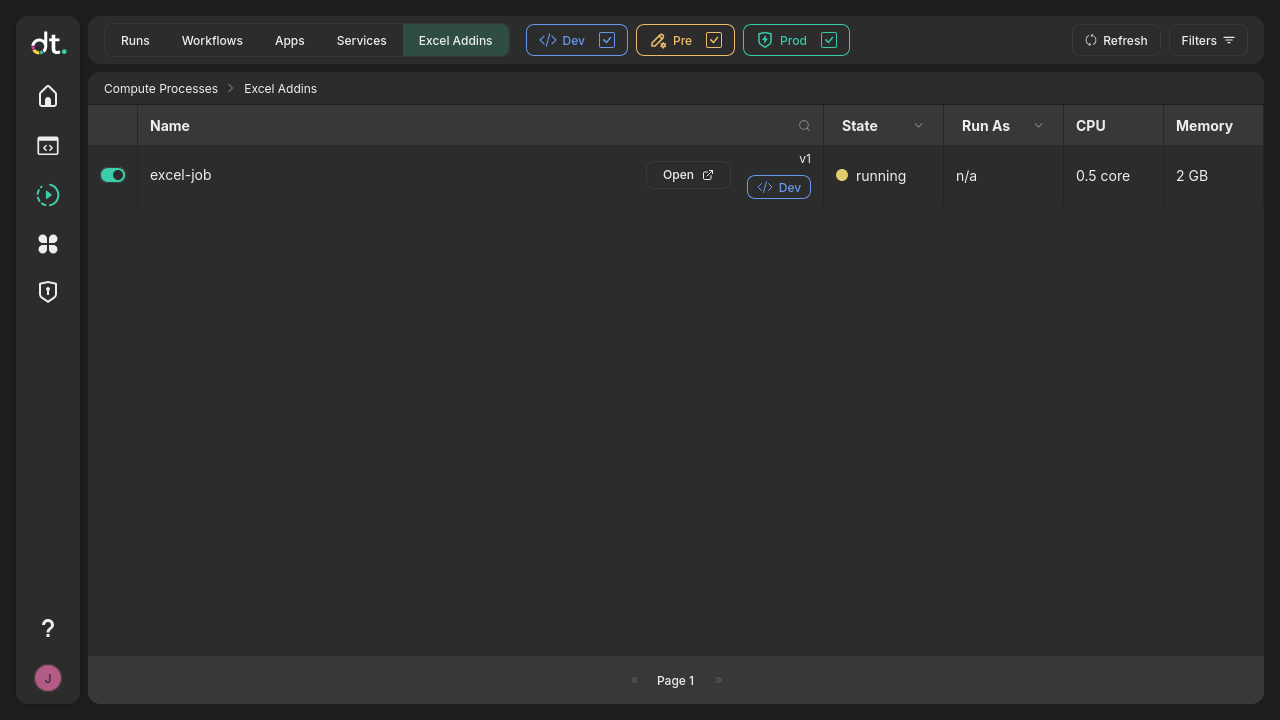
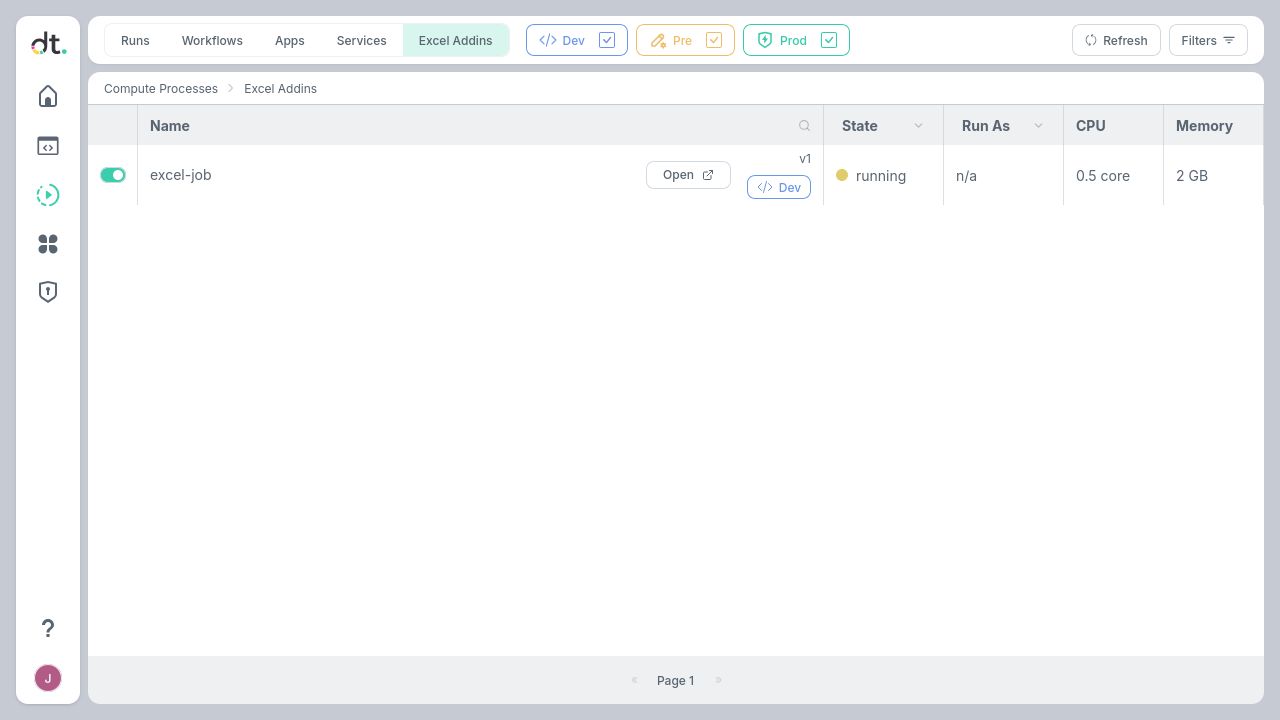
The toggle on the left enables or disables an add-in. A disabled add-in does not show in the Launcher, and users cannot open it. Click on any add-in to view its logs, exposed functions, and deployment history.
Accessing Excel Addins from the Launcher
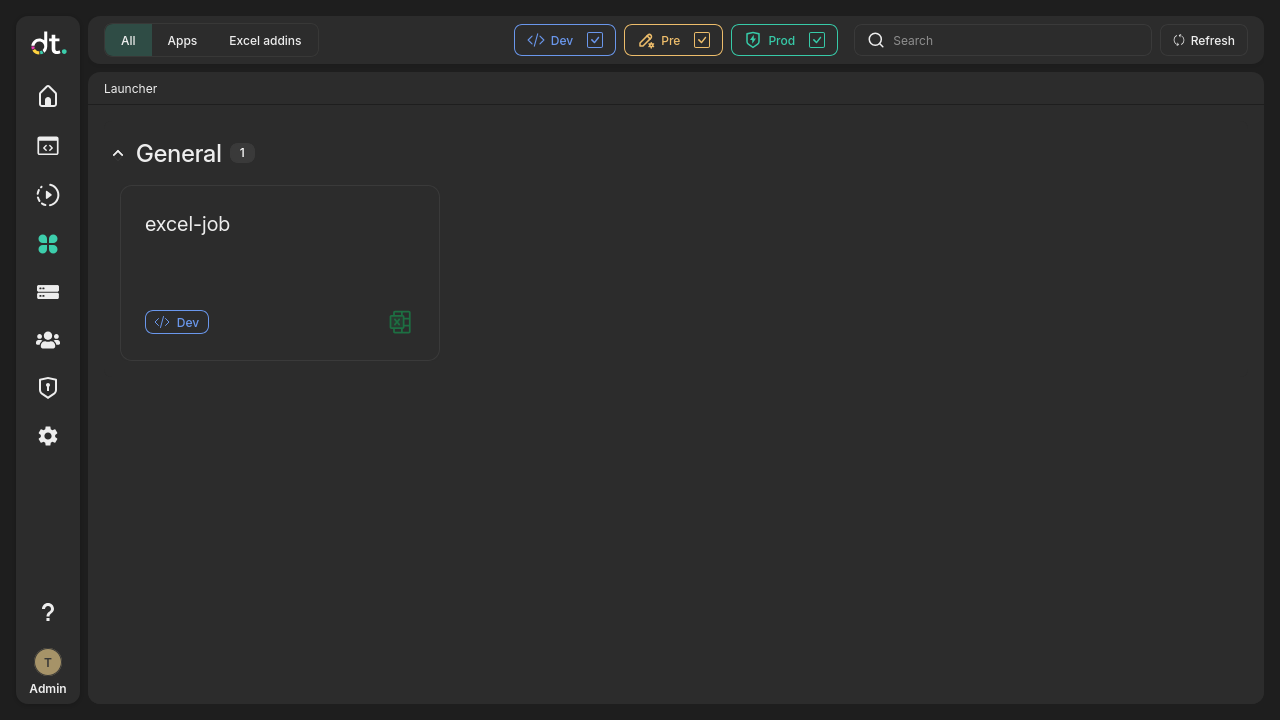
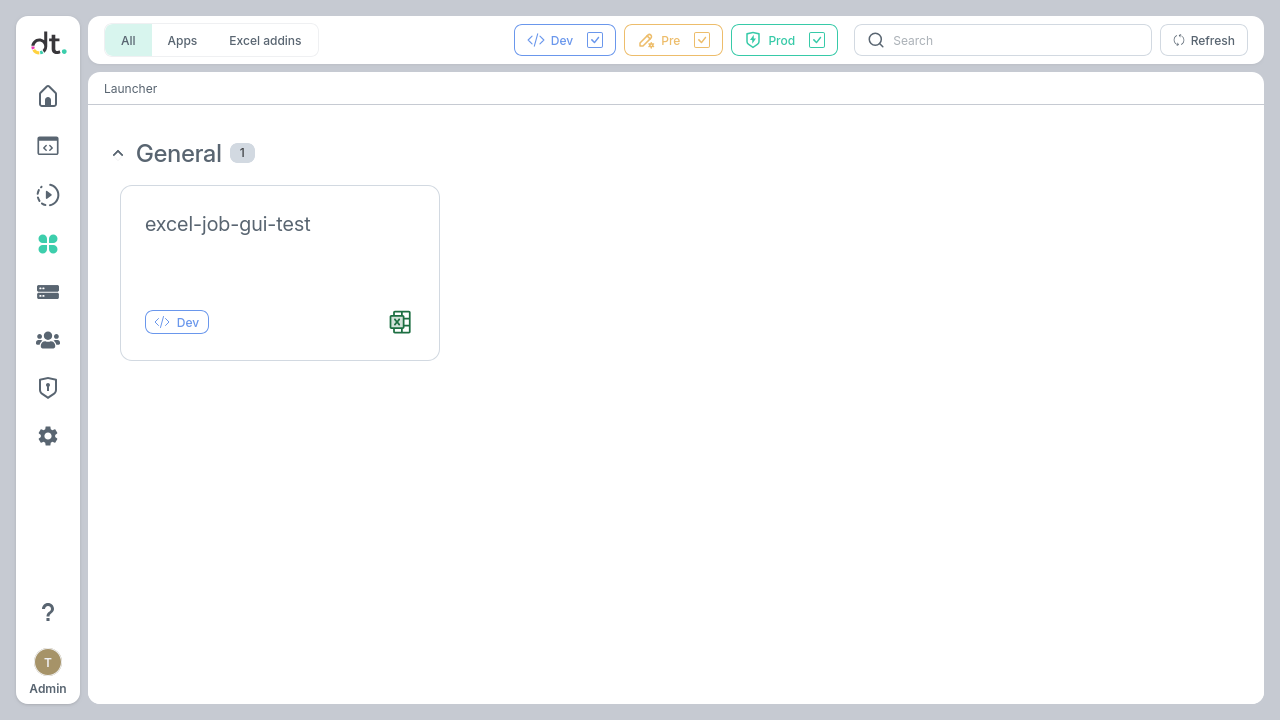
The Launcher page provides a quick way for users to find and open deployed Excel add-ins (and Apps). Click the Launcher icon 
 in the left sidebar, then open the Excel addins tab to see the Excel add-ins available to you, organized by group.
Downloading Excel Add-in configuration
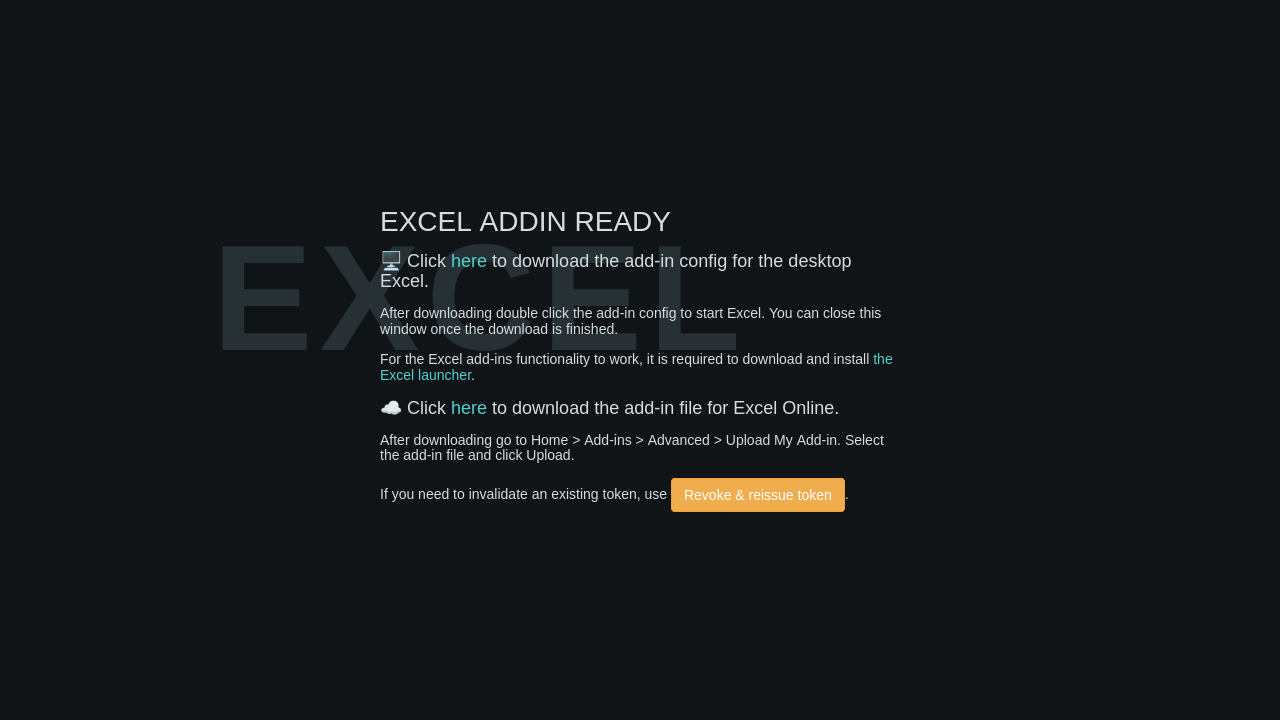
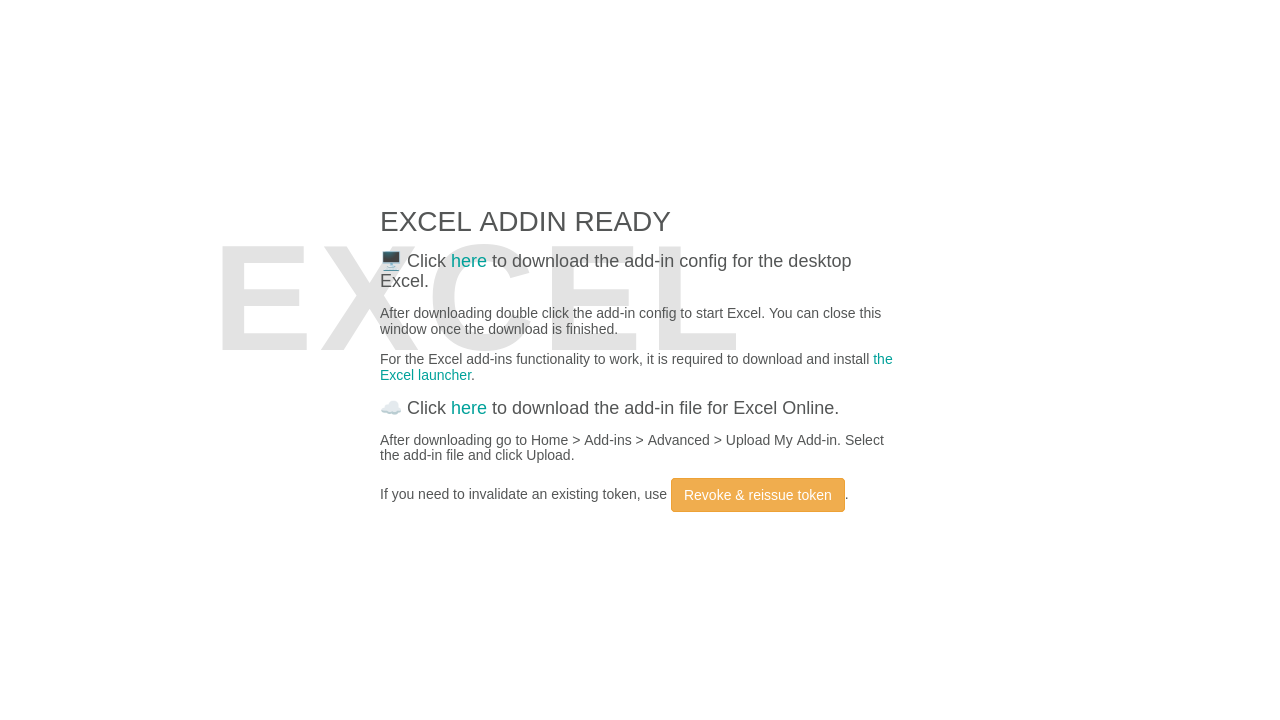
The add-in page has two downloads: the configuration for desktop Excel and the add-in file for Excel Online (Cloud Excel).
Installing the Excel launcher
Desktop Excel needs the Excel launcher. The Excel launcher is a small desktop program that opens add-in configuration files (.dea files). You install it one time on each computer. It runs on macOS and Windows.
- Open the add-in from the Launcher. The add-in page opens.
- Click the Excel launcher link on the add-in page. The page downloads the installer for your operating system:
DatatailrExcelAddins-<version>.dmgon macOS orDatatailrExcelAddins-<version>.msion Windows. - Install the launcher:
- On macOS, open the
.dmgfile and drag Datatailr Excel Addins to the Applications folder. - On Windows, run the
.msifile. The installer puts the launcher inProgram Filesand sets.deafiles to open with it.
- On macOS, open the
On other operating systems, the link shows an error message.
Important: tokens
Token is an internal value that needs to be presented by your computer in order to access the Addin.
If clicking a download link produces an error about the token, just click Revoke & reissue token, then try to download it again.
If you suspect that someone else has your addin config file or you wish to prevent access to the Addin from a computer that you previously used, click Revoke & reissue token
Desktop Excel
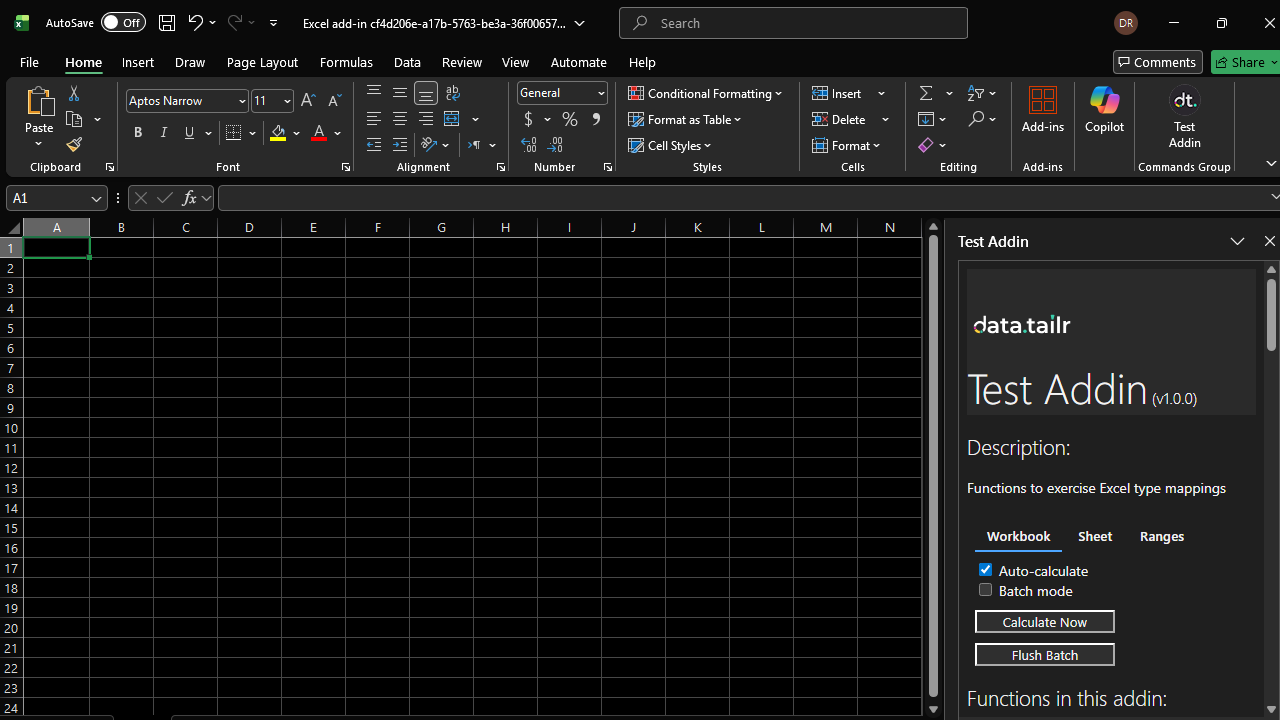
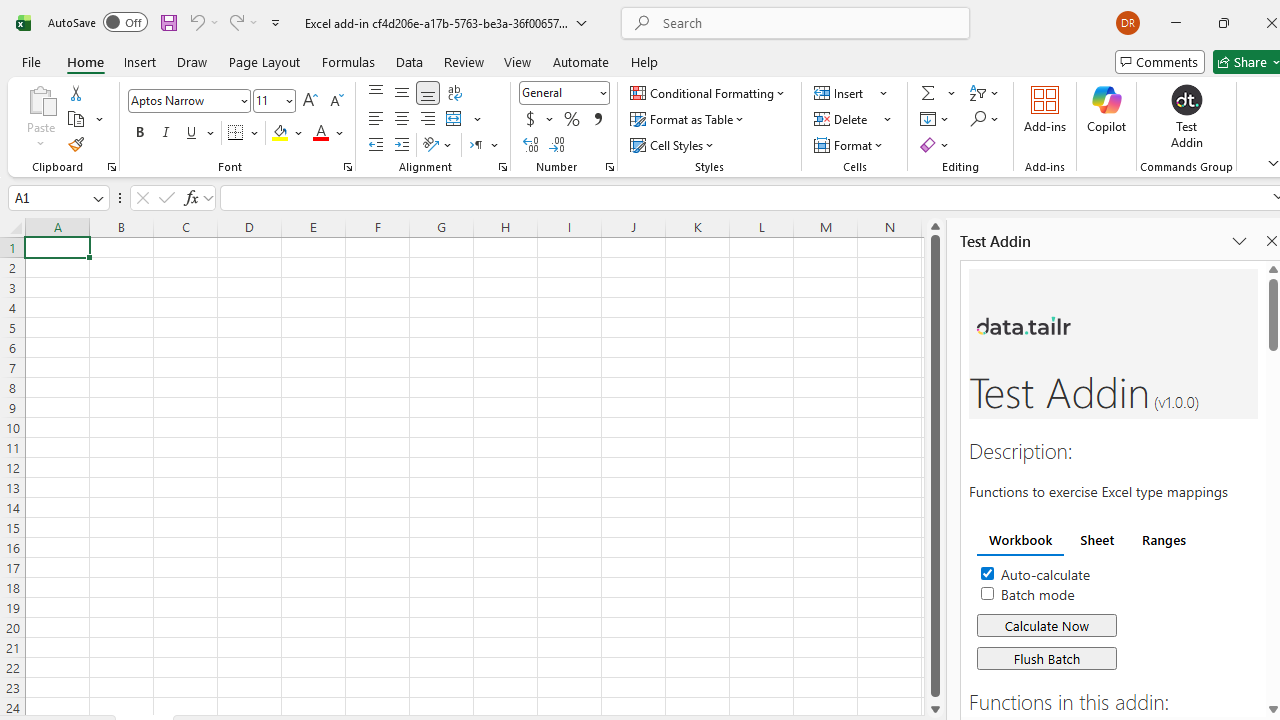
Downloading the desktop Excel configuration produces a .dea file. Open the file and Excel will be opened with a temporary workbook and the addin will be installed into your Excel. You should see the taskpane on the right. The file will be deleted after loading the Addin for the first time.
On opening another workbook, you should still see the Addin with the dt icon in your Home ribbon. Clicking it will open the taskpane again.
When starting Excel without clicking the Addin config and opening a workbook that uses your Addin, it is possible that you will not see your Addin in the Home ribbon. Selecting any cell in the workbook that uses a function from the Addin and pressing Enter (to trigger a calculation) should bring it back.
Cloud Excel
Downloading the cloud Excel configuration produces a .xml file. You can use it in Cloud Excel by clicking Add-ins -> Advanced... -> Upload My Add-in, then upload the .xml file.
Note: in the desktop Excel version, opening a
.deafile clears stale versions of dt Addins. In the Cloud Excel, there is currently no way to clear out stale Addins. They can be cleared out directly out of.xlsxfiles, if there is demand for the Cloud Excel Addins, such a utility will be created.
Calculation Flow Control
Note: this feature provides control over when custom functions are sent from Excel to the server that hosts the Excel Addin. This might be useful for large workbooks where calculation of a large amount of cells might slow down the server and worsen responsiveness of the Addin.
For non-streaming functions, the Addin's taskpane has 2 checkboxes and 2 buttons for controlling calculations.
Auto-calculatecheckbox: If checked: cells calculate automatically on updates, like any other Excel function. If unchecked: cells immediately display"waiting..."when their calculation is triggered. No request to the server is sent, you can use this to prevent any heavy calculations from running until you are ready.Batch modecheckbox: If unchecked: no effect. If checked andAuto-calculateis checked: no effect. If checked andAuto-calculateis unchecked: cells immediately display"staged..."when their calculation is triggered. Their inputs are staged and can be calculated later in one pass whenFlush Batchis clicked.Calculate Nowbutton: Triggers calculation of all cells that have custom functions in them.Flush Batchbutton: Sends all the staged functions in one batch to the server, when calculated - the results will appear in the cells.
The checkboxes can be applied at the following levels:
- Workbook (default)
- Sheet
- Range
Range will override Sheet and Workbook, Sheet will override Workbook
Typical patterns:
- Uncheck
Auto-Calculate->Calculate Now-> CheckAuto-Calculate->Calculate Now - Uncheck
Auto-Calculate+ CheckBatch Mode->Calculate Now->Flush Batch