Workflows
A workflow is a DAG-based data pipeline where you define a series of tasks with dependencies between them. Datatailr automatically determines which tasks can run in parallel based on their dependencies, making your pipelines faster without extra effort.
Workflows are the most common type of compute process. They are ideal for batch data processing — ETL pipelines, ML model training, report generation, and any workload that has a defined start and end.
How It Works
You define a workflow using the @workflow and @task decorators. Each function decorated with @task becomes a node in the pipeline graph. When one task's output is passed as input to another, Datatailr creates a dependency edge between them. Independent tasks run in parallel automatically.
from datatailr import workflow, task

@task()
def fetch_data():
    return {"sales": [100, 200, 150]}

@task()
def calculate_total(data):
    return sum(data["sales"])

@workflow(name="daily_sales_report")
def sales_pipeline():
    data = fetch_data()
    total = calculate_total(data)
When deployed, this creates the following execution graph:
fetch_data runs first, and once it completes, its result is automatically passed to calculate_total.
Key Features
- Automatic parallelism — Independent tasks run simultaneously without any configuration.
- Scheduling — Workflows can run on a schedule (e.g., daily, hourly) or be triggered manually.
- Local testing — Run workflows locally before deploying by passing
local_run=True. - Fault tolerance — Failed tasks report detailed logs. You can fix and re-run without restarting the entire pipeline.
- Task aliasing — Use
.alias()to give distinct names when the same task function is invoked multiple times.
Building Complex Pipelines
More complex workflows are built using simple function composition:
@task()
def get_number():
    return 42

@task()
def add(a, b):
    return a + b

@task()
def reduce_list(*numbers):
    return sum(numbers)

@workflow("Complex Pipeline")
def complex_pipeline():
    total_1 = add(get_number().alias("my_number"), 13).alias("first_addition")
    total_2 = reduce_list(*[get_number().alias(f"num_{i}") for i in range(5)])
    add(total_2, 1).alias("add_one")
    add(total_2, 2).alias("add_two")
    add(total_2, 3).alias("add_three")
This generates the following graph, where num_0 through num_4 all run in parallel:
Deploying a Workflow
Run your workflow script to deploy it to Datatailr:
python my_workflow.py
Datatailr packages your code into a container image, builds it, and schedules it for execution. You can monitor the workflow from the dashboard or the CLI:
dt job ls              # List all compute processes
dt job get my_workflow # View workflow details
dt log read my_workflow # Read workflow logs
Managing in the Dashboard
Navigate to Compute Processes and select the Workflows tab to see all your workflows. The view shows the workflow name, number of tasks, current state, schedule, and a visual history of the last 10 runs along with a weekly activity heatmap.
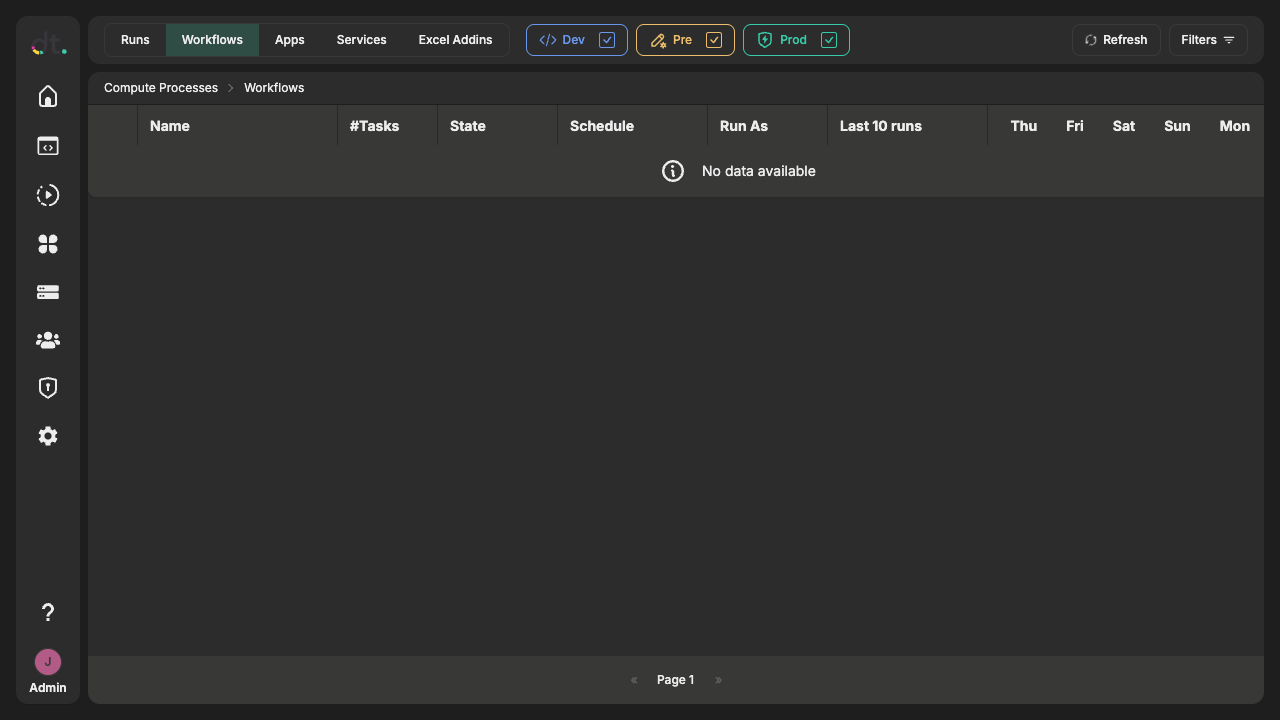
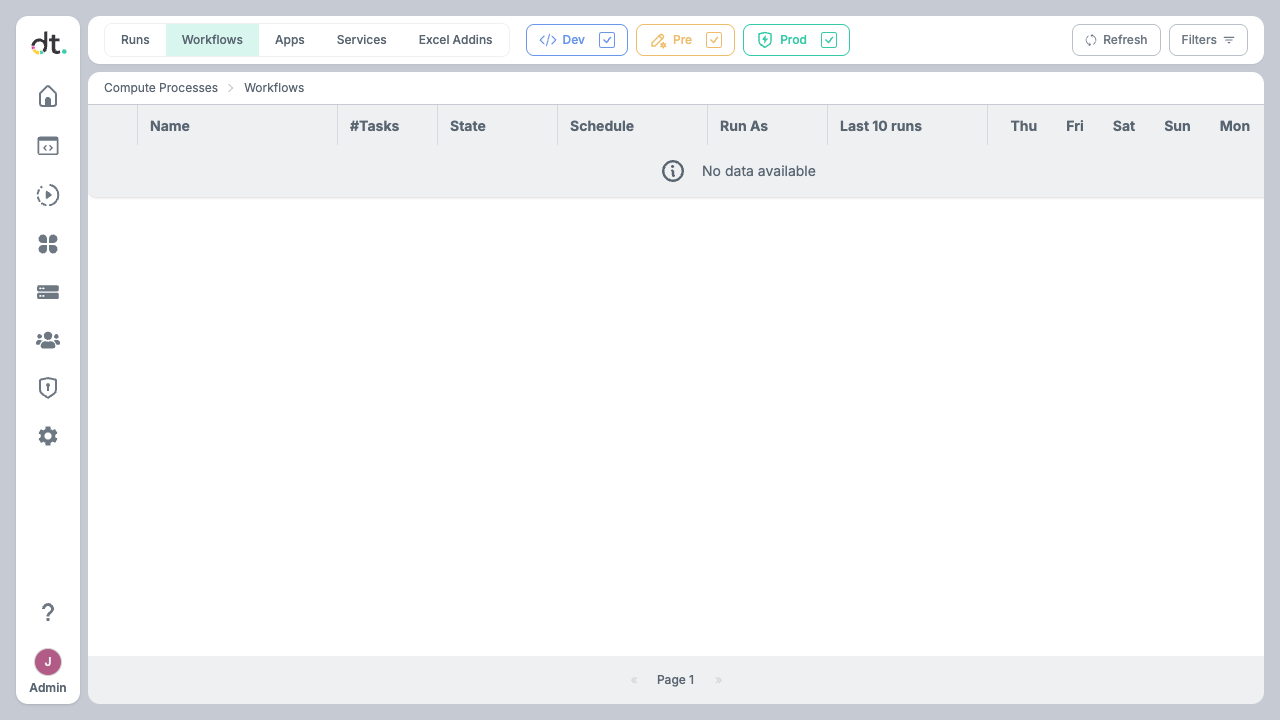
Click on any workflow to view its DAG graph, run history, logs, and definition details.
Task Arguments
On datatailr each task is executed in a container but from the perspective of the workflow function, the tasks are regular Python functions. This means that you can pass arguments to the tasks just like you would with any other Python function. The return value of the task is automatically passed to the next task in the workflow as an argument. In addition, the return values are cached and indexed for future use. There are two uses for the cached results: 1. Having the results cached allows you to re-run the workflow from a specific task without having to re-run all the tasks that came before it. 2. The results can be accessed and used in other workflows, services or apps.
Workflow Results Explorer
One particularly useful feature of the workflow results is the ability to explore them in a Jupyter notebook. This is done by using the %dt_runs magic command.
Running this command in a Jupyter notebook will open a widget that allows you to explore the results of the workflow.
%dt_runs                         # load the widget without a specific workflow selected
%dt_runs my-workflow             # load the widget with the specific workflow selected
%dt_runs my-workflow --env prod  # load the widget with the specific workflow selected in the prod environment
%dt_runs --env pre               # load the widget with the dropdown showing the pre environment
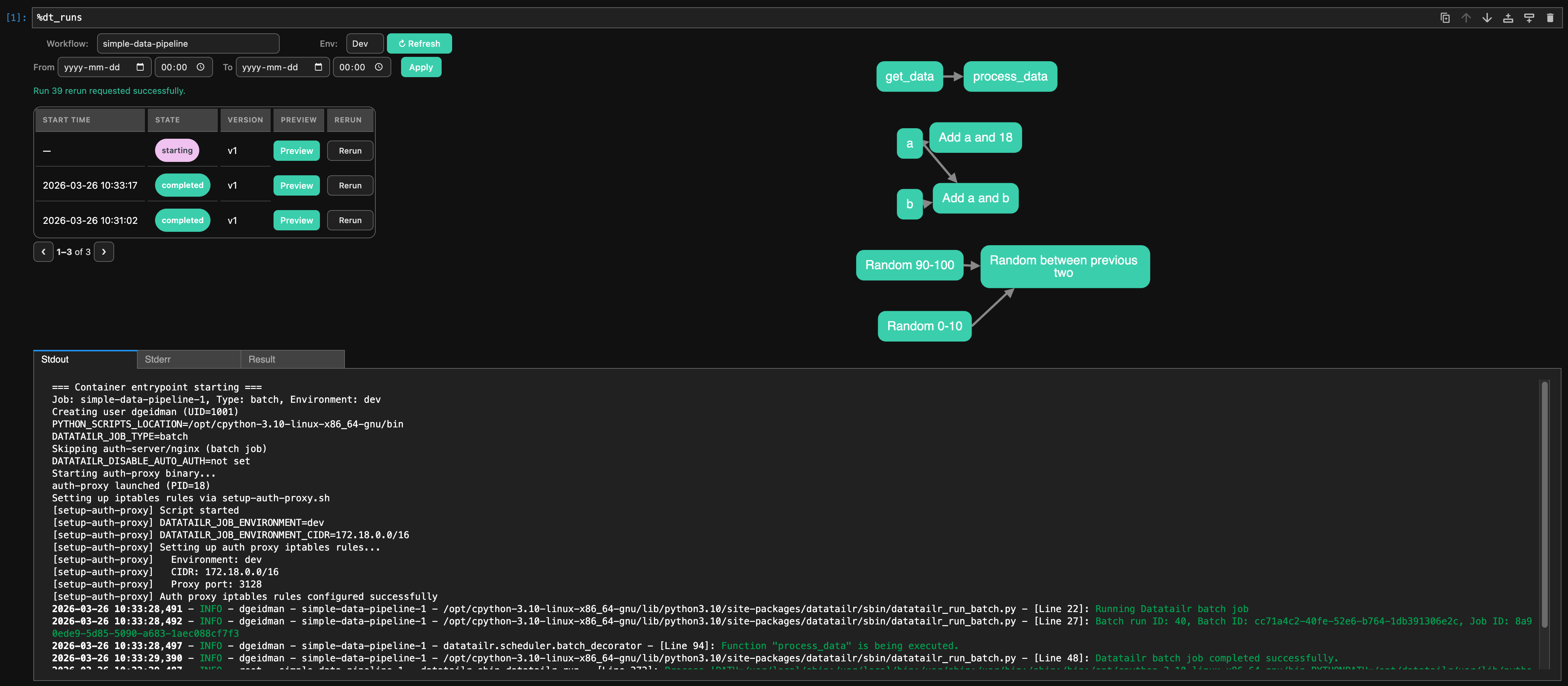
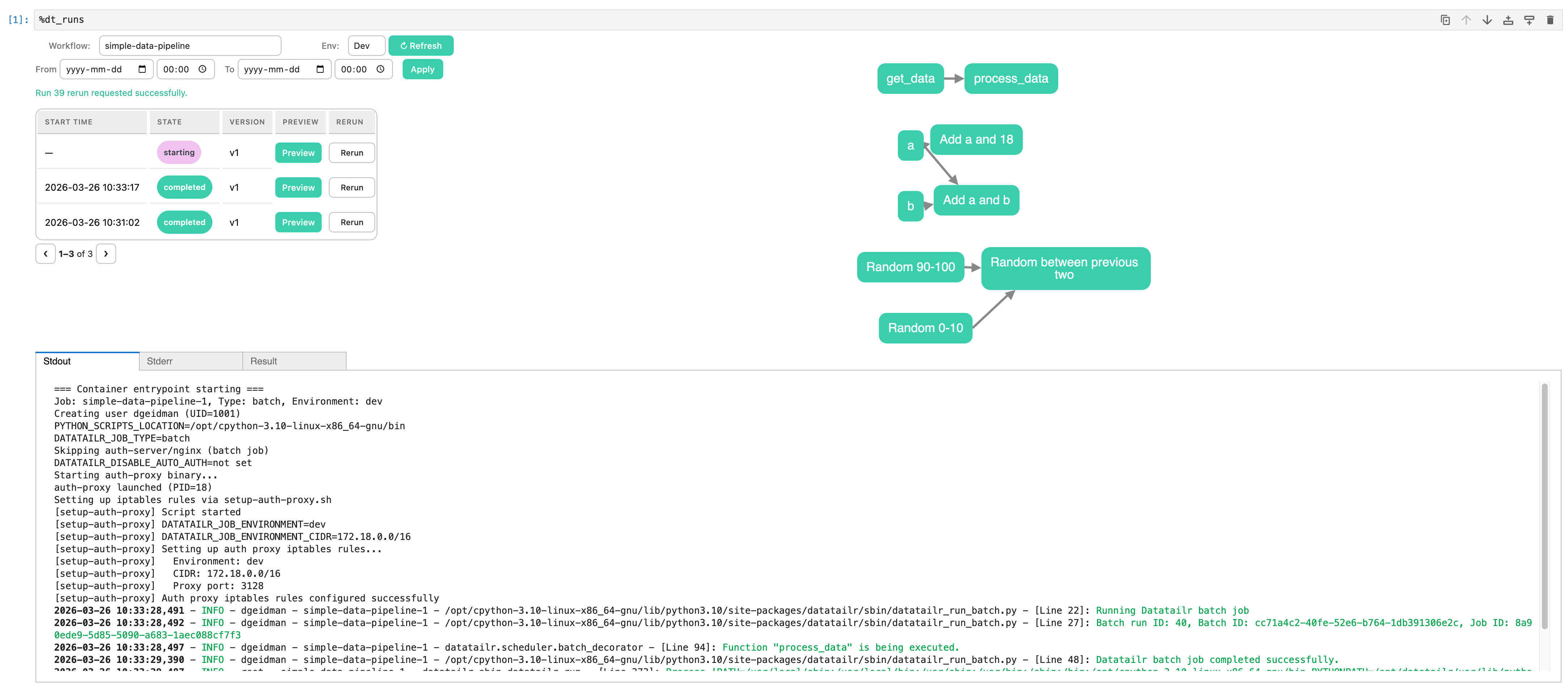
The widget allows you to:
- Select a workflow from the dropdown
- Select an environment from the dropdown
- Select a date and time range to filter the runs
- Rerun a specific run from the run table using the Rerun action
- Confirm rerun options in a popup, including optional
version(integer image version) andfull(full rerun toggle) - View the results of the workflow in a graph format
- View the logs of each task run
- View the return value of each task run and load it into a Jupyter notebook cell
Fetching Run Logs and Results Programmatically
Everything the explorer widget shows is also available through the Python SDK, which is useful for scripting, regression checks, or feeding task outputs into another notebook or job.
Start by getting a handle to the deployed workflow:
from datatailr import Environment
from datatailr.scheduler.batch import Workflow

wf = Workflow(name="daily_sales_report", environment=Environment.DEV, get_existing=True)
Listing runs
Workflow.runs(start_time=None, end_time=None, refresh=False) returns the run history of the workflow as a list of dictionaries. Each entry contains the run_id, state, start_time / end_time (as datetime objects), job_version, and the original_run_id for reruns.
for run in wf.runs():
    print(run["run_id"], run["state"], run["start_time"])
Pass start_time and/or end_time as datetime objects to restrict the result to runs whose start_time falls within that window. Either bound can be omitted for an open-ended range:
from datetime import datetime, timedelta, timezone

since = datetime.now(timezone.utc) - timedelta(days=1)
recent = wf.runs(start_time=since)
The first call to runs() is cached on the workflow instance; pass refresh=True to force a fresh fetch (for example, to pick up runs that started after the previous call, or when changing the time window).
To get the per-task breakdown of a single run (state and timing for every task in the DAG), use run_details(run_id):
details = wf.run_details(run_id=29)
for task in details["tasks"]:
    print(task["name"], task["state"])
Fetching task logs
Workflow.logs(run_id, task_name, stderr=False) returns the captured stdout (or stderr) of a specific task within a specific run as a string. task_name is the display name of the task — the same one shown in the DAG and in run_details(...)["tasks"].
print(wf.logs(run_id=29, task_name="fetch_data"))
print(wf.logs(run_id=29, task_name="fetch_data", stderr=True))
By default the most recent 5000 lines are returned; pass lines=N to override.
When inspecting a run that was produced by an older workflow version (whose tasks may have been renamed or removed since), pass task_id instead of task_name. The id is exposed by run_details(...)["tasks"][i]["id"] and is resolved as-is, bypassing the currently-loaded definition:
details = wf.run_details(run_id=29)
for task in details["tasks"]:
    print(wf.logs(run_id=29, task_id=task["id"]))
Fetching cached task results
Every task's return value is cached on the platform and can be loaded back into Python with Workflow.result(run_id, task_name):
data = wf.result(run_id=29, task_name="fetch_data")
total = wf.result(run_id=29, task_name="calculate_total")
As with logs(...), you can pass task_id (from run_details(...)["tasks"][i]["id"]) to address tasks that no longer exist in the current workflow definition:
details = wf.run_details(run_id=29)
data = wf.result(run_id=29, task_id=details["tasks"][0]["id"])
result(...) returns the original Python object (DataFrame, dict, list, …). It returns None when no result is stored — for example when the task is still running, raised an exception before returning, or its cache entry has expired.
Both logs() and result() raise a ValueError if task_name does not match any task on the workflow. They are also available on non-workflow jobs (App, Service, ExcelAddin); in that case task_name is informational and the call addresses the job itself.